Enable Real-time Amazon Data for OpenClaw
Connect OpenClaw to Amazon for live product details, pricing, category data and searches; install via CLI, GUI, or manual setup and configure API keys securely.

The Amazon Data skill connects OpenClaw directly to Amazon's product ecosystem, enabling real-time access to product details, pricing, keyword search results, and category data. This is ideal for businesses and developers tracking pricing trends, analyzing competitors, or performing market research. It requires an active OpenClaw Gateway, valid API keys, and can be installed via CLI, GUI, or manually from ClawHub.
Key Steps to Get Started:
- Prerequisites: Install Node.js v22+, OpenClaw CLI, and set up an Amazon API account.
- Installation Options:
- CLI: Fast and efficient for developers.
- GUI: Beginner-friendly and visual.
- Manual: Full control for advanced users.
- API Key Configuration: Securely store credentials in environment variables or use OpenClaw's onboarding wizard.
Once installed and configured, the skill allows natural language queries to fetch Amazon data, such as product details, price trends, and category overviews. This transforms OpenClaw into a powerful tool for real-time e-commerce insights.
What You Need Before Installing the Amazon Data Skill
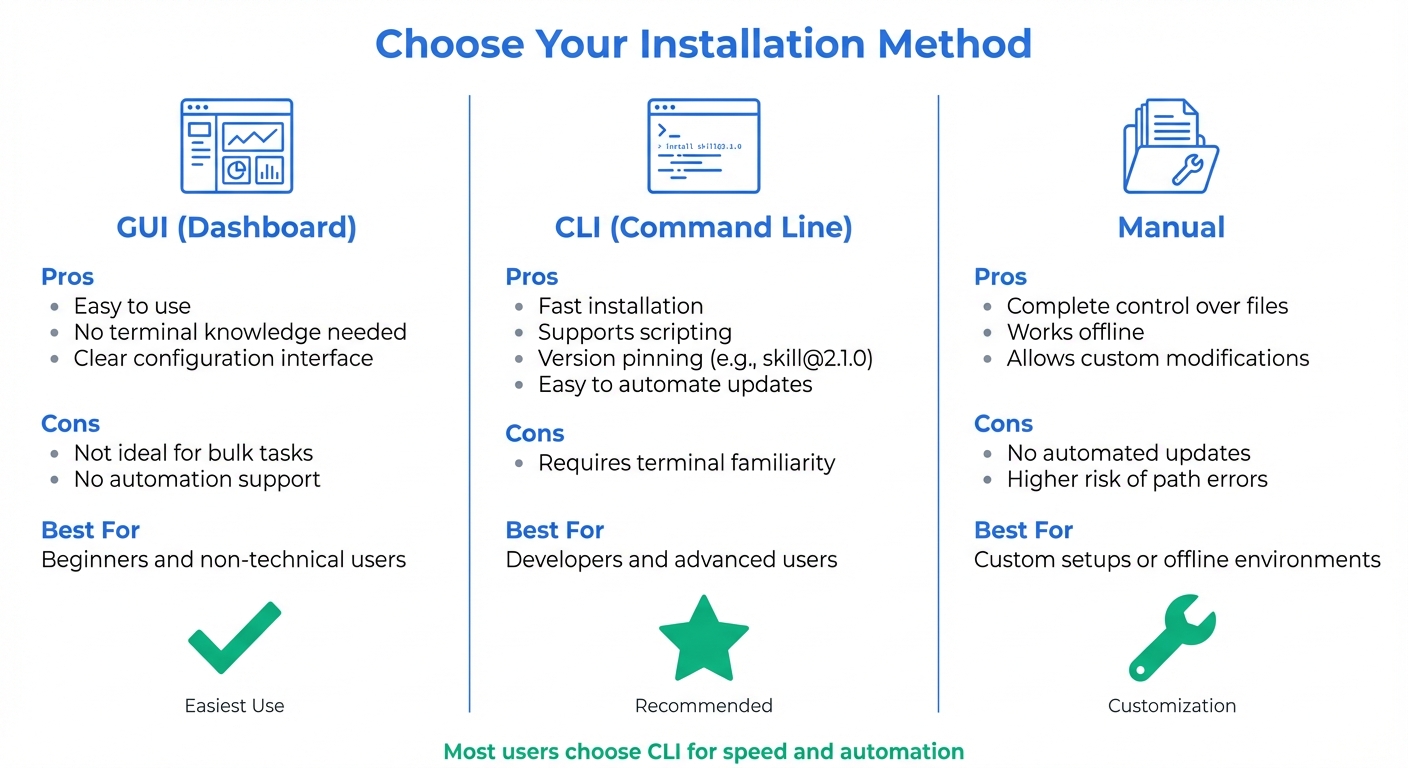
OpenClaw Amazon Data Skill Installation Methods Comparison
Tools and Accounts You’ll Need
To get started with the Amazon Data skill, you’ll need a few key tools and accounts in place. First, make sure Node.js v22+ is installed on your system. You can confirm this by running node --version in your terminal. Additionally, the OpenClaw CLI must be installed globally via npm, and you’ll need a running OpenClaw Gateway. To check if the gateway is active, simply run openclaw gateway status.
Access to ClawHub is also essential. This is the public skill registry where the Amazon Data skill is hosted, offering over 3,000 published skills as of February 2026. While ClawHub is free to use, downloading or updating skills may require a GitHub account that’s at least one week old - this helps prevent misuse.
Lastly, you’ll need an Amazon API account to generate your authentication credentials. Signing up for an API key is straightforward and works for both GraphQL and REST endpoints.
Before diving in, use the command openclaw doctor to confirm your environment is properly configured. Store your API keys securely in ~/.openclaw/.env, or let the onboarding wizard handle credential management for you. Avoid hardcoding keys directly into your skill files to keep them secure.
Once you’ve checked off these prerequisites, you’re ready to pick an installation method.
Installation Methods: Choose What Works for You
OpenClaw offers three ways to install the Amazon Data skill, catering to different levels of expertise and workflow preferences:
| Installation Method | Pros | Cons | Best For |
|---|---|---|---|
| GUI (Dashboard) | Easy to use; no terminal knowledge needed; clear configuration interface | Not ideal for bulk tasks or automation | Beginners and non-technical users |
| CLI | Fast; supports scripting and version pinning (e.g., skill@2.1.0); easy to automate updates |
Requires familiarity with terminal commands | Developers and advanced users |
| Manual | Complete control over skill files; works offline; allows custom modifications | No automated updates; higher risk of path errors | Custom setups or offline environments |
For most users, the CLI method is the quickest and most efficient. It’s perfect for automating updates with commands like clawhub update. If you’re new to the process or prefer a visual interface, the GUI method offers a simple, guided experience with clear options for enabling or disabling features. The manual method is best suited for those who need full control, such as when developing custom modifications or working in offline scenarios.
Pick the method that matches your workflow and get ready to install the skill with confidence!
How to Install the Amazon Data Skill
Before diving into the installation process, make sure your setup meets all the prerequisites mentioned earlier. Once you're ready, you can choose from three ways to install the Amazon Data skill: via CLI, via GUI, or manually.
Installing via CLI
If you’re looking for speed and efficiency, the command-line method is your best bet. Start by verifying the skill's availability in the ClawHub registry. Use the following command:
openclaw skill search amazon-data
Once confirmed, install the skill by running:
openclaw skill install rhino88/amazon-data
After installation, check that the skill is active in your environment:
openclaw skill list
You should see "rhino88/amazon-data" in the list. To confirm everything is set up correctly, run a quick test command:
openclaw run "Use the Amazon Data skill to fetch details for a test product."
This ensures the skill is properly loaded before you proceed to configure API credentials.
Installing via GUI
For those who prefer a more visual approach, the Skills UI in OpenClaw provides a straightforward way to install the Amazon Data skill. Start by opening the Skills section in your OpenClaw interface.
Search for "Amazon Data" in the search bar, and when you find it, click the "Enable" or "Install" button next to the skill. The interface will prompt you to fill in any required details, such as API keys. After completing the setup, save your changes and restart your OpenClaw session if prompted.
Skills installed through the GUI are stored in your workspace, giving them priority over bundled or shared versions. If you want to explore more about the skill, including its documentation and version history, you can visit the official ClawHub registry at clawhub.ai.
Manual Installation
For advanced users who want complete control, manual installation is an option. Begin by obtaining the skill files - either by cloning the repository or downloading it as a ZIP file. Once you have the files, navigate to your OpenClaw skills directory. This could be:
~/.openclaw/skills/for shared access<workspace>/skills/for workspace-specific installation
Copy the amazon-data folder into the appropriate directory. Make sure the folder contains a valid SKILL.md file with proper YAML frontmatter. After placing the folder, restart the OpenClaw runtime.
To test the installation, run:
openclaw run "Use the Amazon Data skill to find [product]."
Double-check the folder structure and SKILL.md formatting if the test doesn’t work. Remember, skills in the workspace directory will take priority over any bundled or managed versions.
Setting Up Your Amazon API Keys
With the skill installed, the next step is connecting it to Amazon's data services. This requires obtaining API credentials from your Amazon Developer account and configuring them in OpenClaw.
Getting Your Amazon API Keys
Head over to developer.amazon.com and select "Create your Amazon Developer account." Fill out the registration form and agree to the Amazon Developer Services Agreement. If you're registering on behalf of a business, it's a good idea to use a shared organization email, like organization_api@company.com, to avoid access issues when team members change.
Once registered, complete the identity verification step using your government-issued ID and a recent bank or credit card statement. After verification, set up a Login with Amazon (LWA) security profile or a Selling Partner API developer profile, depending on the data you need. Assign roles to define the data your API keys can access. Keep in mind, the review process for standard roles usually takes 1 to 2 weeks.
For Product Advertising API access, log in to the Amazon Associates Program, click the "Product Advertising API" link, and follow the instructions to create your API account. When generating keys, proceed to "Continue to Security Credentials" and avoid using IAM users - this API requires parent/root keys. Expand the Access Keys section, click "Create New Access Key", and download the file immediately. Remember, your Secret Access Key is visible only once, so make sure to save it securely.
Adding API Keys to OpenClaw
To configure OpenClaw, use the CLI and replace placeholder values with your actual credentials:
openclaw config set amazon.apiKey YOUR_ACCESS_KEY_ID
openclaw config set amazon.apiSecret YOUR_SECRET_ACCESS_KEY
openclaw config set amazon.region us-east-1
If you're using the Product Advertising API, include your Associate Tag:
openclaw config set amazon.associateTag YOUR_ASSOCIATE_ID
After entering your keys, restart the OpenClaw Gateway to apply the configuration:
openclaw restart
To confirm everything is set up correctly, run:
openclaw doctor
or
openclaw models status
For a quick test, try:
openclaw chat "Get details for Amazon product B0CZ9H827H"
Prefer using environment variables? Add them to ~/.openclaw/.env:
export AMAZON_API_KEY="your_access_key_id"
export AMAZON_API_SECRET="your_secret_key"
The OpenClaw daemon will automatically read these when restarted.
Configuration Options
The Amazon Data skill offers several configuration parameters. While most setups only need the basics, additional options allow for more control and customization.
| Configuration Option | Description | Mandatory |
|---|---|---|
amazon.apiKey |
Your Access Key ID from the Amazon Developer Console | Yes |
amazon.apiSecret |
The Secret Access Key linked to your developer profile | Yes |
amazon.region |
The marketplace region (e.g., us-east-1, eu-west-1) |
Yes |
amazon.associateTag |
Your Amazon Associate tracking ID (for PA-API) | Yes* |
amazon.roleArn |
IAM Role Amazon Resource Name (for AWS-based authentication) | No |
amazon.endpoint |
Custom API endpoint for proxies or alternative providers | No |
amazon.timeout |
Maximum wait time (in milliseconds) for API responses | No |
*Only required if using the Product Advertising API.
If you encounter a 403 Forbidden error, make sure the specific API is enabled in your Amazon Developer Console. Also, double-check that your credentials are placed at the root level of openclaw.json5 rather than in the skills.entries section, as incorrect placement can lead to authentication issues.
sbb-itb-d082ab0
How to Retrieve Real-time Amazon Data
With your API keys set up, you can start pulling Amazon data using OpenClaw's natural language interface. This tool connects directly to Amazon to gather product details, search results, and category listings. Here’s how you can use it to fetch different types of data.
Getting Product Details and Prices
If you want information about a specific product, just provide the ASIN (Amazon Standard Identification Number) in your query. For example:
openclaw chat "Get details for Amazon product B0CZ9H827H"
This command delivers details like specifications, pricing in US dollars ($X.XX), availability, and customer ratings. If you'd rather use a browser, the built-in dashboard offers a chat interface for convenience. For more specific data, you can refine your query: "Show me the price history and reviews for ASIN B08N5WRWNW" or "What are the technical specifications for product B07XJ8C8F5?"
Searching for Products by Keyword
Skip Amazon's search bar and use OpenClaw for keyword-based product searches. Just type:
openclaw run "search for wireless noise canceling headphones on Amazon"
The tool processes your query and provides a list of matching items, complete with titles, prices, ratings, and ASINs. You can narrow your results by adding filters, like: "Find laptop stands under $50 with at least 4-star ratings." This way, you can compare options quickly without needing to open a browser.
Getting Category Data
Want to explore broader product categories? You can query Amazon's taxonomy for category overviews or dive into specific segments. For instance:
openclaw chat "Show me top-selling products in the electronics category"
You can also ask for subcategory details: "What are the main categories under Home & Kitchen?" or "List bestsellers in the camping and hiking category." OpenClaw organizes and delivers this data, helping you navigate Amazon's structure and spot trending products in various niches.
Testing and Fixing Common Problems
Once you've set everything up, it's time to make sure your skill works as expected. Start by accessing the OpenClaw Gateway dashboard at http://127.0.0.1:18789/. Use the unique gateway token created during setup to log in. You can test the skill directly in the Gateway UI by entering queries into the chat interface and reviewing the responses. For a more detailed approach, use the command line: run openclaw skill test ./amazon-skill --verbose to see logs that can help identify where issues might arise.
Testing Your Queries
Start with simple queries in the Gateway UI. For example, try looking up a product by entering a specific ASIN. If everything is working correctly, you should get structured data back - like product names, prices, and links - within a few seconds. Keep in mind that API responses might take 2–5 seconds. If you encounter any problems, move on to troubleshooting using the tips below.
Common Errors and How to Fix Them
Most issues fall into a handful of categories. Here’s a breakdown of common errors and how to resolve them:
- Authentication Errors: These happen when API keys are missing or expired. Double-check that your keys are added to the
~/.clawdbot/moltbot.jsonfile or set as environment variables. - Rate Limit Errors: If you've hit your provider's request limit, wait about 60 seconds for it to reset. Alternatively, you can configure a fallback model to avoid interruptions.
- Connection Issues: If the gateway refuses connections, ensure it’s running and bound to
127.0.0.1. Binding to0.0.0.0can expose your system to the internet, which is risky. - Skill Issues: If the system can’t find your skill, verify the installation using
openclaw skills list. Incorrect paths or missing installations are common culprits. - Context Problems: If the conversation history is too long, you might see a "Context Length Exceeded" error. Clear the session with
openclaw session clear.
For a quick diagnostic, run openclaw doctor --fix. This command can automatically resolve permissions issues and fix corrupted configurations.
| Error Message | What's Wrong | How to Fix It |
|---|---|---|
| Invalid API Key | Key is missing or formatted incorrectly | Add the key to moltbot.json or regenerate it in your provider console |
| Rate Limit Exceeded | Too many requests in a short period | Wait 60 seconds or switch to a less expensive model for routine tasks |
| Connection Refused | Gateway is not running or bound incorrectly | Restart the gateway and ensure it binds to 127.0.0.1 |
| Skill Not Found | Skill is not installed or path is incorrect | Use openclaw skills list to verify the skill installation |
| Context Length Exceeded | Too much conversation history in the session | Run openclaw session clear to reset the context |
Updating and Maintaining the Skill
Once testing is complete and errors are resolved, it’s essential to keep your skill up-to-date. Run openclaw skill update or clawhub update --all to download the latest version from ClawHub. If you make changes to API keys or other settings, restart the gateway to apply them. You can check the skill’s operational status with openclaw skill status amazon-data. To monitor real-time activity and catch potential issues early, use openclaw logs --follow.
As of February 2026, ClawHub offers over 3,000 community-built skills. Regular updates not only improve performance but also provide critical security patches.
Summary
With the Amazon Data Skill installed and configured, OpenClaw steps up from being just another assistant to becoming a fully autonomous e-commerce research tool. It now retrieves live product data, tracks pricing trends, and monitors search rankings - all through natural language commands. This means businesses can access real-time insights with ease, transforming how they approach market research.
E-commerce companies benefit from deploying multiple agents to handle tasks like inventory tracking and competitor analysis. OpenClaw’s persistent memory ensures the agent continuously refines its insights, becoming more relevant over time. For developers, the model-agnostic architecture balances performance and cost, making it efficient for both routine data scraping and in-depth market analysis.
"OpenClaw represents a fundamental shift in how we interact with AI - from asking questions to delegating tasks." - Peter Steinberger, Creator of OpenClaw
This system is backed by ClawHub’s expansive skill library, which now features over 3,000 community-built skills and sees 15,000 daily installations. The Amazon Data Skill alone provides access to data for more than 350 million products across 25,000+ categories. This gives users the same real-time data that powers leading e-commerce platforms, without the hassle of building or maintaining custom scrapers.
The result? A seamless process that takes you from data collection to actionable market insights. To stay ahead, regularly run openclaw skill update and make the most of your configured gateway and API keys to automate price monitoring, extract product details, and make informed, data-driven decisions.
FAQs
Which Amazon API do I need for this skill?
To get real-time Amazon data for this skill, you'll need the Canopy API. Once it's configured, it provides access to Amazon product details, pricing information, search results, and other data.
Why am I getting a 403 Forbidden error?
A 403 Forbidden error typically signals a problem with your API key, permissions, or configuration settings.
To resolve this, start by double-checking the format of your API key - make sure it’s entered correctly without extra spaces or typos. Next, confirm that your account has been approved and has the necessary permissions to access the resource. Lastly, review your environment variables to ensure they’re set up properly.
For a more detailed breakdown, consult the troubleshooting guides specific to your API or platform.
How do I keep my Amazon API keys secure in OpenClaw?
To keep your Amazon API keys safe in OpenClaw, don’t embed them directly into skills or include them in the LLM's context. Doing so increases the risk of accidental exposure. A better approach is to inject these secrets at runtime using specialized tools or by setting them as environment variables, such as OPENCLAW_PROVIDERS_AMAZON_API_KEY. This method ensures your credentials stay out of logs and instructions, significantly lowering the chance of leaks.