How to Set Up Real-Time Price Alerts with Canopy API
Guide to building real-time Amazon price alerts with Canopy API—GraphQL/REST examples, polling, error handling, notifications, and scaling tips.
Real-time price alerts help you track Amazon product prices instantly, so you can respond to changes without constant monitoring. Using Canopy API, you can automate notifications for price drops, inventory shifts, or sales spikes, ensuring you stay competitive. The API supports both REST and GraphQL endpoints, offering access to over 350 million Amazon products with up-to-date pricing data.
To get started, you’ll need:
- A Canopy API account (free plan includes 100 requests/month).
- Basic knowledge of JavaScript and Node.js.
Key steps include:
- Define alert conditions (e.g., notify if price drops below $19.99).
- Fetch pricing data using Canopy API’s REST or GraphQL endpoints.
- Set up notifications via email, webhooks, or SMS.
With proper setup, you can monitor individual products or entire portfolios, helping you react quickly to market changes. Start small, then scale up as needed with Canopy API’s flexible plans.
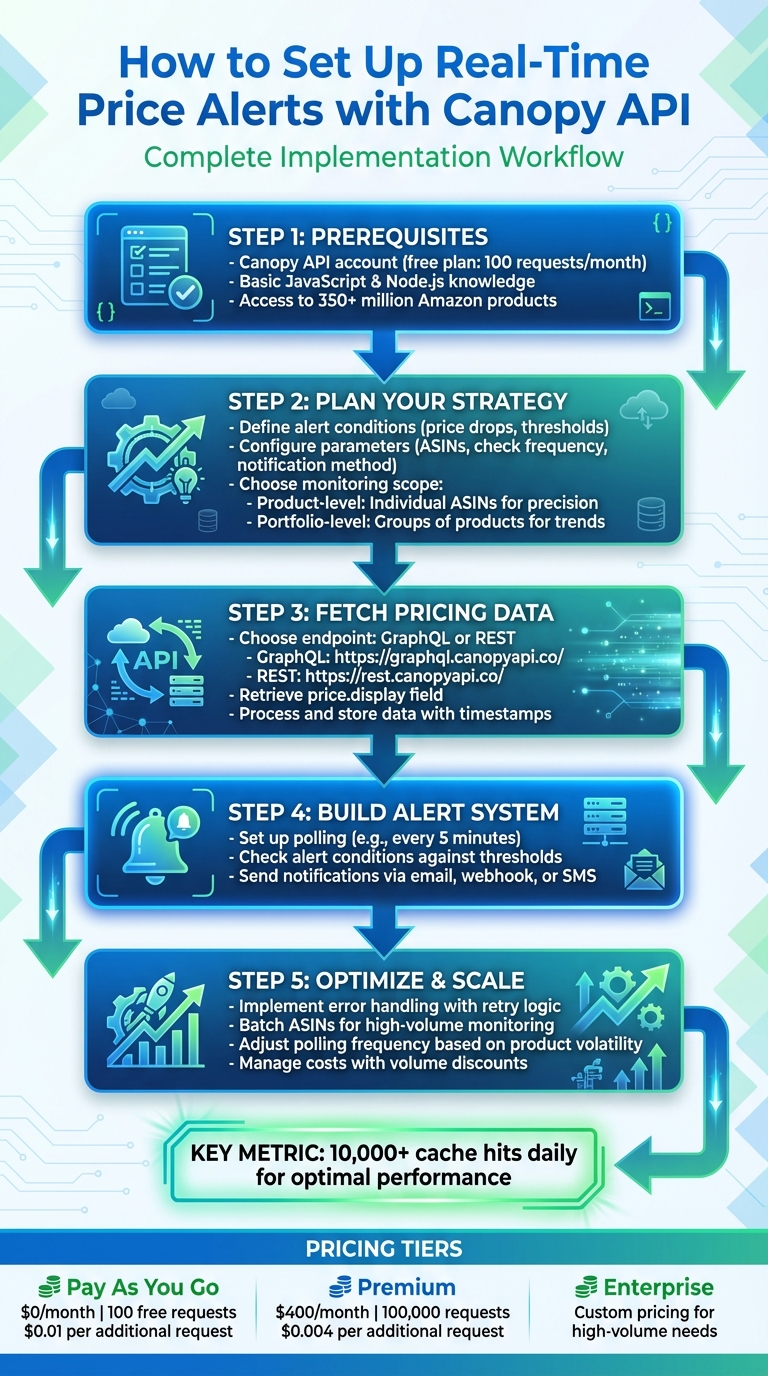
Complete workflow for setting up real-time price alerts with Canopy API
Planning Your Price Alert Strategy
Crafting a well-thought-out monitoring strategy is key to avoiding notification overload while focusing on the metrics that genuinely impact your business. Real-time alerts are powerful, but a clear plan ensures you're tracking the right products and data points.
Setting Up Alert Conditions
Alert conditions define the triggers for your notifications. A common example is setting an alert for a price drop - say, when a product's price falls below $19.99. You can also create threshold-based alerts, notifying you when a price rises above $50.00 or dips under $15.00. Beyond pricing, the Canopy API offers sales estimations and stock estimations, giving you the flexibility to set alerts for inventory changes or unexpected sales surges, which might indicate shifts in market demand.
Configuring Alert Parameters
Once you've determined your alert conditions, it's time to fine-tune the parameters. Start by specifying the ASINs you want to monitor. Next, decide how frequently the system should check for updates - whether that's every 5 minutes for near-instant notifications or every hour to reduce the number of requests. Choose your preferred notification method, such as email, webhook, SMS, or in-app alerts. Since Canopy API focuses on Amazon.com data, all prices are displayed in USD, so make sure to format dollar amounts correctly (e.g., $29.99).
Product-Level vs. Portfolio-Level Alerts
With your parameters set, consider the scope of your monitoring. There are two main strategies: product-level alerts and portfolio-level alerts.
- Product-level alerts are ideal for tracking individual ASINs, offering precise monitoring for high-value or priority items. For instance, if you're competing in the premium headphones market, you might closely track the pricing of your top competitors' products.
- Portfolio-level alerts, by contrast, monitor groups of products - such as an entire brand or category - making them effective for identifying broader market trends. If your catalog includes 50 similar items, portfolio-level monitoring helps you spot price shifts across the category without setting up individual alerts for every product.
Choose product-level alerts when precision is critical, and opt for portfolio-level monitoring when you need a broader perspective on market trends. Both approaches can complement each other, depending on your business goals.
Fetching Real-Time Pricing Data with Canopy API
Now that your alert system is ready, the next step is to pull real-time pricing data from Amazon using the Canopy API. This API supports both GraphQL and REST endpoints, giving you flexibility in how you access product details. Both approaches provide current pricing, product information, and other essential data for your alerts.
Using the GraphQL Endpoint
The GraphQL endpoint, located at https://graphql.canopyapi.co/, allows you to request only the data you need - nothing extra. To fetch pricing for a specific ASIN, you can create a query targeting the amazonProduct field. Include the price { display } field along with any other details you want to monitor.
Here’s an example in JavaScript to fetch pricing for a single product:
const query = `
  query amazonProduct {
    amazonProduct(input: { asinLookup: { asin: "B0D1XD1ZV3" } }) {
      title
      brand
      price {
        display
      }
      ratingsTotal
      rating
    }
  }
`;

fetch('https://graphql.canopyapi.co/', {
  method: 'POST',
  headers: {
    'Content-Type': 'application/json',
    'Authorization': 'Bearer YOUR_API_KEY'
  },
  body: JSON.stringify({ query })
})
  .then(response => response.json())
  .then(data => {
    const product = data.data.amazonProduct;
    console.log(`${product.title} - ${product.price.display}`);
  })
  .catch(error => console.error('Error fetching price:', error));
The price { display } field provides the formatted price (e.g., "$29.99"). If you need to monitor multiple ASINs, you can batch queries using aliases to minimize the number of requests.
Using the REST Endpoint
For a more traditional approach, the REST endpoint is available at https://rest.canopyapi.co/. You can make GET requests to specific routes, passing the ASIN as a parameter and including your API key in the headers.
Here’s how to retrieve pricing data using the REST API:
const asin = 'B0D1XD1ZV3';

fetch(`https://rest.canopyapi.co/products/${asin}`, {
  method: 'GET',
  headers: {
    'Authorization': 'Bearer YOUR_API_KEY',
    'Content-Type': 'application/json'
  }
})
  .then(response => {
    if (!response.ok) {
      throw new Error(`HTTP error! status: ${response.status}`);
    }
    return response.json();
  })
  .then(data => {
    console.log(`Price: ${data.price.display}`);
  })
  .catch(error => {
    console.error('Failed to retrieve pricing:', error);
  });
Always check the response status before processing the data. If an ASIN is invalid or temporarily unavailable, the API will return an error code. Make sure your system handles these errors gracefully to avoid interruptions.
Processing and Storing Pricing Data
Once you’ve fetched the pricing data, you’ll need to format it for storage and analysis. The price.display field provides a string like "$19.99". To use it in calculations, strip the dollar sign and convert it into a float:
function parsePrice(displayPrice) {
  const numericPrice = parseFloat(displayPrice.replace('$', '').replace(/,/g, ''));

  if (isNaN(numericPrice)) {
    console.warn('Invalid price format:', displayPrice);
    return null;
  }

  return numericPrice;
}

// Example usage
const priceString = "$29.99";
const priceValue = parsePrice(priceString); // Returns 29.99
For tracking price changes over time, include timestamps with each price check. A simple JSON structure works for small-scale monitoring, but if you’re handling large volumes of data, consider using a time-series database. Each entry should include the ASIN, parsed price, original display string, and an ISO 8601 timestamp (e.g., 2025-12-16T14:30:00Z). This historical data is invaluable for analyzing trends or troubleshooting alerts.
Building a Price Alert System in JavaScript
Create a Node.js service to monitor product prices and send alerts when specific conditions are met. This involves setting up a polling mechanism, defining thresholds, and delivering notifications through your preferred channels.
Setting Up Polling for Price Updates
Start by creating an array of products, each with an ASIN (Amazon Standard Identification Number) and a price threshold. Use setInterval() to periodically fetch data from the Canopy API for these products. Here's how you can set it up:
const asinsToMonitor = [
  { asin: 'B0D1XD1ZV3', threshold: 25.00 },
  { asin: 'B08N5WRWNW', threshold: 15.00 },
  { asin: 'B07ZPKN6YR', threshold: 40.00 }
];

async function pollPrices() {
  for (const item of asinsToMonitor) {
    const response = await fetch(`https://rest.canopyapi.co/products/${item.asin}`, {
      method: 'GET',
      headers: {
        'Authorization': 'Bearer YOUR_API_KEY',
        'Content-Type': 'application/json'
      }
    });
    const data = await response.json();
    checkAlertConditions(item.asin, data.title, data.price.display, item.threshold);
  }
}

// Poll every 5 minutes (300,000 milliseconds)
setInterval(pollPrices, 300000);
The polling interval determines how often the system fetches updates. Shorter intervals mean quicker alerts but also more API calls. Once the data is retrieved, the next step is to evaluate if an alert should be triggered.
Checking Alert Conditions
The alert logic compares the current price to the predefined threshold. Convert the price from a string to a number, then check if it meets your criteria.
function checkAlertConditions(asin, title, displayPrice, threshold) {
  const currentPrice = parseFloat(displayPrice.replace('$', '').replace(/,/g, ''));
  if (currentPrice <= threshold) {
    triggerAlert(asin, title, currentPrice, threshold);
  }
}
If needed, you can also monitor percentage drops by storing the previous price and calculating the difference. For example, a 10% drop on a $50 item would trigger an alert if the price falls to $45 or below. This approach is handy when relative price changes are more important than fixed thresholds.
Once a price drop is detected, the system should notify you immediately.
Sending Alerts
When conditions are met, send notifications via email, webhooks, or logging systems. Alerts should include all relevant details, such as the ASIN, product name, current price, threshold, and a timestamp in the MM/DD/YYYY format.
function triggerAlert(asin, title, currentPrice, threshold) {
  const alertMessage = {
    asin: asin,
    title: title,
    currentPrice: `$${currentPrice.toFixed(2)}`,
    threshold: `$${threshold.toFixed(2)}`,
    timestamp: new Date().toLocaleDateString('en-US'), // Format: MM/DD/YYYY
    message: `Price dropped below $${threshold.toFixed(2)}`
  };

  // Send via webhook
  fetch('https://your-webhook-url.com/alerts', {
    method: 'POST',
    headers: { 'Content-Type': 'application/json' },
    body: JSON.stringify(alertMessage)
  });

  console.log('Alert triggered:', alertMessage);
}
For email notifications, you can integrate services like SendGrid or Nodemailer. Webhooks are great for sending alerts to platforms like Slack or Discord. Additionally, logging alerts to a file or database can help you track and analyze price trends over time.
sbb-itb-d082ab0
Optimizing and Scaling Your Alert System
Once your alert system is up and running, the next step is to fine-tune its performance and ensure it can handle growth efficiently. Here's how you can do that.
Error Handling and Reliability
For your price alert system to function smoothly, it must be equipped to handle errors effectively. Start by wrapping your API fetch calls in try-catch blocks, and use exponential backoff retry logic. This means if a request fails, you wait a few seconds before retrying - and increase the wait time with each subsequent failure.
Keep detailed logs that include timestamps, ASINs, and error messages. These logs will help you identify recurring problems and resolve them quickly. To prevent overwhelming your system during repeated failures, consider implementing a circuit breaker pattern. This temporarily stops API requests after a series of consecutive failures, ensuring your system remains stable and responsive, even under heavy load.
Scaling for High-Volume Monitoring
If you're tracking hundreds or thousands of products, you need to distribute the workload effectively. Break your ASIN list into smaller batches and assign each batch to a separate worker process or container. This approach ensures that no single process is overloaded, making your system faster and more reliable.
For large-scale operations, select a pricing plan that matches your needs. For instance, the Canopy API Premium plan costs $400/month and includes 100,000 requests, with additional requests priced at $0.004 each. If your requirements exceed this, you can explore Custom Enterprise Pricing options tailored for even higher volumes.
Managing API Costs
To keep costs under control, adjust how often you poll the API based on the volatility of the products you're monitoring. Products with frequent price changes might need checks every 5 minutes, while more stable items can be checked every 15 or 30 minutes.
Canopy API also offers automatic volume discounts to help reduce costs as your usage increases. For example, the Pay As You Go plan starts at $0/month, providing 100 free requests. After that, additional requests cost $0.01 each, with discounts kicking in at 10,000 and 100,000 requests. By tailoring your polling intervals and taking advantage of these discounts, you can balance performance with cost efficiency.
Conclusion and Next Steps
Now that you've built and optimized your alert system, let’s recap its advantages and map out what comes next.
With the tools at your disposal, you can now create a reliable real-time price alert system. By using Canopy API's REST and GraphQL endpoints, you’ve sidestepped the hassle of maintaining custom scrapers, saving both time and effort.
Key Takeaways
Real-time price alerts can give you a serious advantage by helping you track competitor pricing, spot deals, and manage your product portfolio effectively. Canopy API simplifies this process with user-friendly endpoints that integrate smoothly into your workflows. Plus, it scales effortlessly to match your needs, offering a cost-efficient solution as your usage grows.
The platform is designed for performance and reliability, handling over 10,000 cache hits daily. Flexible pricing options mean you can start small and expand as your requirements evolve.
Next Steps
- Create your Canopy API account: Once signed up, grab your unique API key from the dashboard.
- Test your setup: Use the provided JavaScript code with a small batch of ASINs to ensure your alert logic works as expected.
- Fine-tune your system: Monitor price trends and adjust your alert parameters to better align with observed patterns.
- Explore advanced features: Dive into the documentation for insights on batch processing and custom alerts.
- Scale up if needed: For high-volume monitoring, consider upgrading to the Premium plan or contact Canopy for Custom Enterprise Pricing, which includes dedicated support and tailored integrations.
FAQs
How can I set up alerts for specific price changes on Amazon products?
To monitor specific price changes, you can set a target price in your API request and use Canopy API's webhook or notification feature to stay informed when the price hits your desired level. Here's an example using GraphQL:
query {
  amazonProduct(input: { asinLookup: { asin: "YOUR_ASIN" } }) {
    title
    price {
      display
    }
  }
}
Keep an eye on the price.display value and configure your alert to activate when it meets or drops below your target price. This way, you'll receive real-time updates on the price changes that matter most to you.
What’s the difference between product-level and portfolio-level price alerts?
When it comes to price tracking, product-level alerts zero in on a single item, identified by its ASIN, keeping you informed about any price changes specific to that product. On the other hand, portfolio-level alerts take a wider approach, enabling you to monitor price fluctuations across multiple products or even entire categories. This helps you stay updated on broader trends and shifts in the market.
How can I manage my API usage to control costs effectively?
To keep your costs in check while using the Canopy API, consider starting with the free tier if your needs are relatively small. Whenever you can, group multiple requests into a single batch to reduce the number of API calls. Another smart move is to use local caching, which helps cut down on repetitive requests. Finally, keep an eye on your usage to make sure you're on the plan that best matches your needs. These simple steps can help you get the most out of the API without overspending.