Free Tool: Amazon Keyword Rank Checker
Get an ASIN's organic Amazon search position, page, and index status instantly—no signup. Real-time data via API.
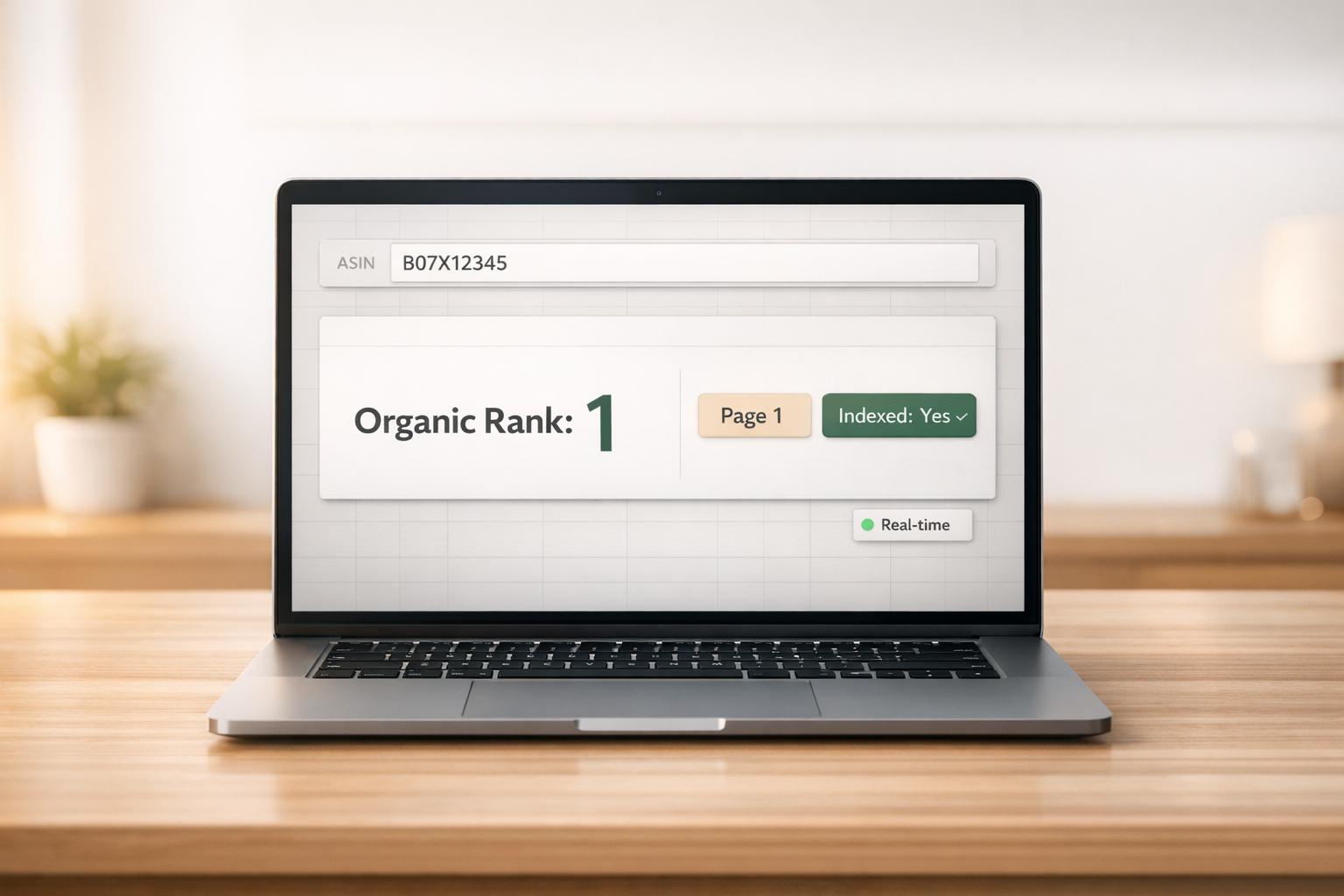
Want to know how your product ranks on Amazon search results? The Amazon Keyword Rank Checker is a free, no-signup tool that helps you find your product's position for any keyword on Amazon. Just enter your product's ASIN and a keyword to see its rank, page number, and position in organic search results.
Why Use It?
- Track Performance: Measure how well your product ranks for specific keywords.
- Optimize Listings: Identify keyword gaps and refine your product titles or descriptions.
- Quick Insights: Get live results in seconds without creating an account.
How It Works:
- Enter your product's ASIN and a keyword.
- Select the Amazon marketplace (e.g., Amazon.com).
- Run the check to see your rank and visibility.
This tool is powered by Canopy API, ensuring accurate, real-time data. Whether you're a seller or managing multiple ASINs, this tool simplifies tracking keyword performance to improve your product's visibility on Amazon.
How the Amazon Keyword Rank Checker Works
How Keyword Ranking Data is Retrieved
When you provide an ASIN and a keyword, the tool mimics a shopper's search on Amazon.com and scans the results to locate your product. Each ASIN–keyword pair is analyzed individually to pinpoint the product's organic search position. This approach ensures accurate data collection, enabling the tool to deliver live results powered by the Canopy API.
The focus is strictly on organic search results, excluding any sponsored or ad placements. This means you're getting a true measure of your product's SEO performance without any distortion from paid rankings. The tool reviews the first few pages of results (up to 200 organic listings), where the majority of customer clicks happen. If your ASIN doesn’t appear within this range, it will be marked as "not ranked in top results", signaling that your product lacks visibility for that keyword.
Once your ASIN is identified, the tool provides three key pieces of data: your overall rank, your page number, and your position on the page. This breakdown helps you understand exactly where your product stands in the customer journey.
Canopy API's Role in the Tool
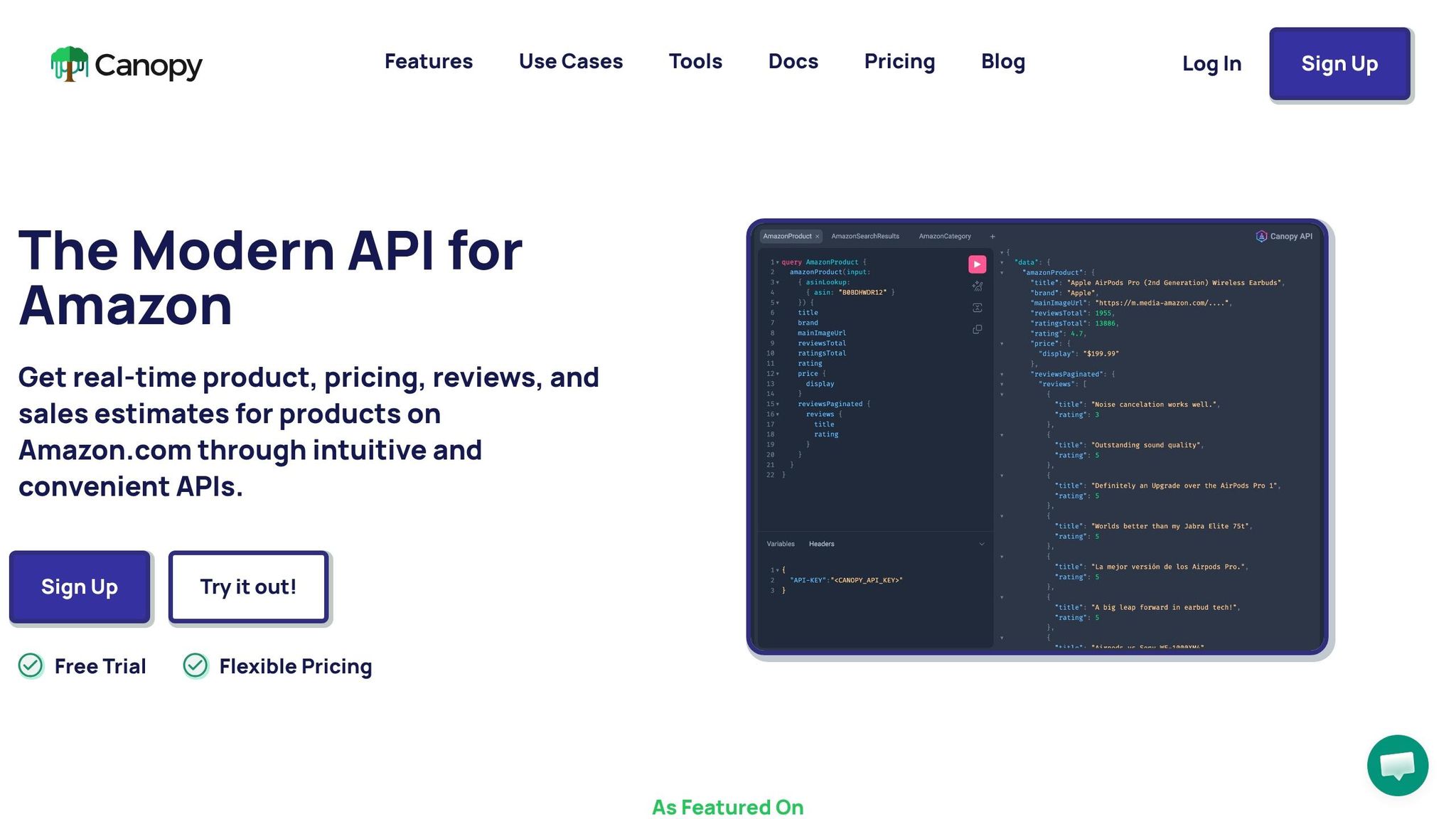
The tool’s real-time data retrieval is powered by Canopy API. Instead of scraping Amazon’s HTML, the rank checker sends a live request to Canopy API’s Amazon search endpoints each time you run a query. The API processes the search, retrieves Amazon’s results, and delivers a structured JSON response. This response includes product ASINs, positions, sponsored flags, USD prices, and other metadata. The tool then filters this data to focus solely on organic results, presenting the rank details you see.
Canopy API supports both REST and GraphQL endpoints, giving developers the flexibility to choose the integration method that works best for their applications. The same production API powers this free tool, meaning the data displayed in your browser is identical to what you can access programmatically for your own projects. Up next, explore how you can incorporate the free rank checker into your daily workflow to make the most of these insights.
sbb-itb-d082ab0
How to Use the Free Keyword Rank Checker
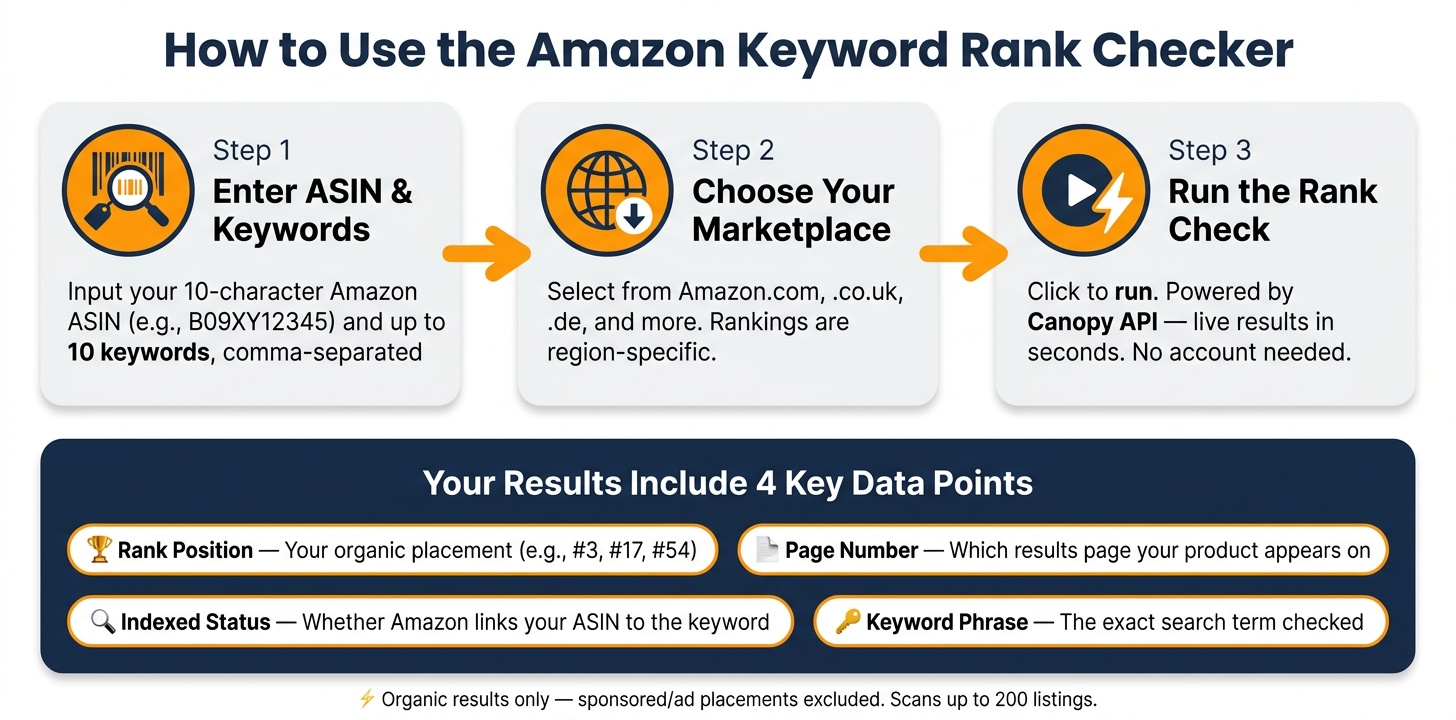
How to Check Your Amazon Keyword Rank in 3 Simple Steps
Accessing the Tool
To get started, open your browser and visit https://www.canopyapi.co/tools/keyword-rank-checker. No need to create an account, log in, or download anything - everything happens right in your browser. This makes it quick and easy to check your product's ranking on Amazon without any setup hassles.
Inputting ASINs and Keywords
Begin by entering an ASIN and the keyword phrase you want to check.
An ASIN is Amazon's unique 10-character identifier for each product. You can find it in the product URL. For instance, in amazon.com/dp/B09XY12345, the ASIN is B09XY12345.
For keywords, input the exact phrases a shopper might use to search. The tool allows up to 10 keywords per check, which you can type in individually or as a comma-separated list. Once you've entered your ASIN and keywords, you're ready to move on.
Running a Keyword Rank Check
After entering your ASIN and keywords, follow these steps:
- Select your marketplace from the dropdown menu. For U.S.-specific results, choose Amazon.com, or pick another domain like
.co.ukor.deif you're tracking rankings in other regions. Keep in mind that rankings are region-specific, so an ASIN’s performance in one marketplace may differ from another. - Double-check your selections, then click the button to run the check.
The tool processes your request in real time using Canopy API. For deeper analysis, you can also use Amazon keyword sales insights tools to track competitor performance. Make sure your product is indexed for the keywords you're testing; otherwise, it won’t show up in the results.
Reading Your Keyword Rank Checker Results
Key Data Fields Explained
When reviewing your keyword rank checker results, you'll come across several important data fields. Each one provides useful information to help you improve your product's visibility:
| Data Field | What It Shows | How to Use It |
|---|---|---|
| Keyword Phrase | The exact search term you entered (e.g., "stainless steel water bottle") | Confirm it aligns with common search terms used by U.S. shoppers. |
| Rank Position | Your ASIN's placement in organic search results (e.g., 3, 17, 54) | Lower numbers mean better visibility. Top spots (1–3) get about 35–40% of clicks, while lower ranks see much less engagement. |
| Page Number | The results page where your product appears | Page 1 is critical - around 70% of Amazon shoppers don’t go beyond it. |
| Indexed Status | Whether Amazon has linked your ASIN to the keyword | If not indexed, your product won’t show up in organic searches for that keyword. |
Among these, rank position is the most precise metric for tracking visibility. While the page number gives a quick overview (e.g., "we're on page 2"), the rank position lets you monitor specific improvements, such as moving from #38 to #19 after making changes to your listing.
What Rank Positions and Pages Tell You
Your product's indexing status ensures Amazon recognizes its relevance to a keyword, but ranking determines where it shows up in search results.
For instance, if your product is indexed for "garlic press stainless steel" but lands on page 4, it’s technically searchable, but its visibility is extremely low. Products beyond the second page rarely gain meaningful traction.
If your ASIN ranks between positions 20 and 80 for a keyword, that’s often a signal of untapped potential. Enhancing your product title, bullet points, or overall sales performance could help push your listing onto page 1, where most customer engagement happens.
On the other hand, if a keyword isn’t indexed, it’s time to update your listing. Adjust the title, bullet points, or backend search terms, then check again in 24–48 hours to see if the changes take effect.
Adding the Tool to Your Workflow
Tracking Keyword Performance Over Time
Incorporating a rank checker into your daily routine can help you stay on top of your Amazon listings. While a single check gives you a snapshot of your current rank, consistent tracking paints a clearer picture of how your optimization efforts are performing. By running daily checks, you can monitor search trends and fluctuations. For the best results, record rankings over three consecutive days before making any updates. This "before" data acts as a benchmark for comparison once your changes go live. You'll be able to see whether your product's rank has improved, dropped, or even disappeared from search results - valuable feedback on how well your adjustments are working.
Measuring the Effect of Listing Updates
When you update a listing - whether it’s tweaking a title, revising bullet points, or adjusting backend search terms - give it 24–48 hours before rechecking the rankings. Then, compare these new results against the three-day baseline you established earlier. Sorting rankings by the difference in position can help you identify what’s working. For instance, moving from #42 to #18 is a clear win. If there’s no change or rankings decline, it might be time to revisit your copy or experiment with different keyword placements.
Automating Rank Checks with Canopy API
Manual checks are manageable for a handful of ASINs, but they become impractical for larger catalogs. That’s where automation comes in. Canopy API offers REST and GraphQL endpoints, allowing developers to explore Amazon Search API use cases and pull real-time keyword ranking data - such as rank positions, ASINs, and pricing - directly into dashboards or custom tools. The data is returned in a structured JSON format, making it easy to integrate with spreadsheets, business intelligence platforms, or databases. The GraphQL endpoint provides the added benefit of requesting only the fields you need, keeping responses streamlined and processing efficient.
Here’s a simple JavaScript example using the GraphQL endpoint:
const query = `
  query {
    amazonKeywordSearch(keyword: "stainless steel water bottle", domain: US) {
      searchResults {
        position
        asin
        title
      }
    }
  }
`;

const response = await fetch("https://graphql.canopyapi.co/", {
  method: "POST",
  headers: {
    "Content-Type": "application/json",
    "Authorization": "Bearer YOUR_API_KEY"
  },
  body: JSON.stringify({ query })
});

const data = await response.json();
console.log(data);
This automation uses the same data as the free rank checker tool but on a larger scale. Canopy API's Premium plan starts at $400 per month, including 100,000 requests, with additional requests costing $0.004 each. This setup is perfect for teams managing daily automated checks across hundreds of keywords. By integrating these automation strategies into your workflow, you can streamline monitoring and fine-tune your Amazon listing optimization efforts.
Conclusion
Key Takeaways
Your product's keyword rank is a direct indicator of how visible it is on Amazon. If your listing falls off the search results - or worse, never makes it there - you could be missing out on important sales opportunities. The free Amazon Keyword Rank Checker offers a quick and straightforward way to see your ASIN's positions, helping you make decisions based on actual data rather than guesswork.
"Rankings are a performance signal, not the end-goal; focus on conversion and profit metrics." - SellerSprite Success Team
Rank data is invaluable for diagnosing indexing problems, evaluating the effects of listing updates with an Amazon product data analyzer, and identifying the keywords that matter most. Since Amazon's algorithm places heavy emphasis on relevance and sales velocity, keeping track of your rankings allows you to prioritize your optimization efforts effectively. These insights can help you take the right steps toward boosting your product's visibility.
Next Steps
Start by analyzing your top-performing ASIN and most critical keywords using the Amazon Keyword Rank Checker. You can establish a performance baseline in less than a minute.
Looking to streamline the process? Canopy API's REST and GraphQL endpoints let you pull real-time ranking data directly into your dashboards or workflows. The free Hobby plan offers 100 requests per month, while the Pay As You Go plan costs just $0.01 per additional request. It's a simple, low-cost way to explore automation before committing to a larger-scale solution.
FAQs
Why does my rank change between checks?
Your product's rank on Amazon can fluctuate between checks due to several factors. These include changes in Amazon's search algorithm, shifts in customer behavior, pricing adjustments, inventory levels, and other variables that influence product visibility. Such fluctuations are a normal part of how Amazon's system recalibrates rankings over time.
What should I do if my ASIN shows as not indexed?
If your ASIN isn’t showing as indexed, you can manually check by entering the ASIN and keyword into Amazon’s search bar to see if your product appears in the results. For larger-scale checks, you might want to use indexing tools to quickly verify the status of multiple products.
How can I automate rank tracking for many ASINs?
To streamline rank tracking across multiple ASINs, leverage the Canopy API's REST or GraphQL endpoints to fetch real-time rankings. Here's how you can set it up:
- Schedule API Requests: Use tools like cron jobs or cloud services to send API requests at regular intervals, ideally every 6 to 12 hours.
- Optimize with GraphQL: Take advantage of the GraphQL endpoint to batch requests. This allows you to retrieve rankings and product details in a single query, saving time and reducing API calls.
- Set Up Alerts: Automate monitoring by storing the results in a database and creating alerts for any ranking changes. This ensures you stay updated without constant manual checks.
With this setup, you'll have an efficient and hands-free way to keep track of rankings.