Changelog: New REST + GraphQL Playground
Built-in dashboard playground to test REST and GraphQL product queries with auto API-key injection and live JSON response inspection.
The Canopy API dashboard now includes a built-in tool for testing Amazon product data queries: the REST + GraphQL Playground. It allows you to test API requests directly in your browser, with no setup required. Key features include:
- REST and GraphQL support: Switch between REST for quick lookups and GraphQL for detailed, customizable queries.
- Automatic API key injection: Your key is preloaded for every request, eliminating manual configuration.
- Live response inspection: View JSON responses, HTTP status codes, and headers in real time.
- Interactive GraphQL Docs: Explore available queries and fields without external documentation.
The Playground works seamlessly within the dashboard, making it easier to test and refine API integrations. REST uses predefined endpoints, while GraphQL offers a single, flexible endpoint for tailored queries. Keep in mind, all requests count toward your monthly API limit, so choose a plan that matches your usage.
For developers and data analysts, this tool simplifies testing and ensures efficient access to Amazon’s vast product catalog.
01 - Learn GraphQL basics, run queries inside Playground and demo GraphQL APIs to work with
sbb-itb-d082ab0
Playground Features at a Glance
The playground comes packed with tools designed to streamline your API testing workflow. Here's a closer look at its standout features.
One Interface for REST and GraphQL
Switching between REST and GraphQL testing is seamless thanks to the playground's intuitive tab layout. The REST tab is tailored for GET requests, where you can target specific resource URLs. Meanwhile, the GraphQL tab relies on POST requests through a single endpoint. Despite the differences in request styles, authentication remains consistent across both tabs. This setup allows you to test the same query in either format, helping you decide which approach works best for your integration.
Live Response Inspection
With the playground, you get immediate access to the full JSON response for every query. Additionally, HTTP status codes and headers are displayed right in the interface, so you can confirm your authentication setup before diving deeper into query logic.
The GraphQL tab includes a handy "Docs" panel in the top left corner. This interactive feature lets you explore available queries, types, and fields in real time, eliminating the need to consult external documentation. Features like intelligent type-ahead make query building smoother by helping you avoid structural errors. Plus, Apollo Tracing integration provides performance metrics, making it easier to pinpoint and address slow-running requests.
Canopy API Endpoint Integration
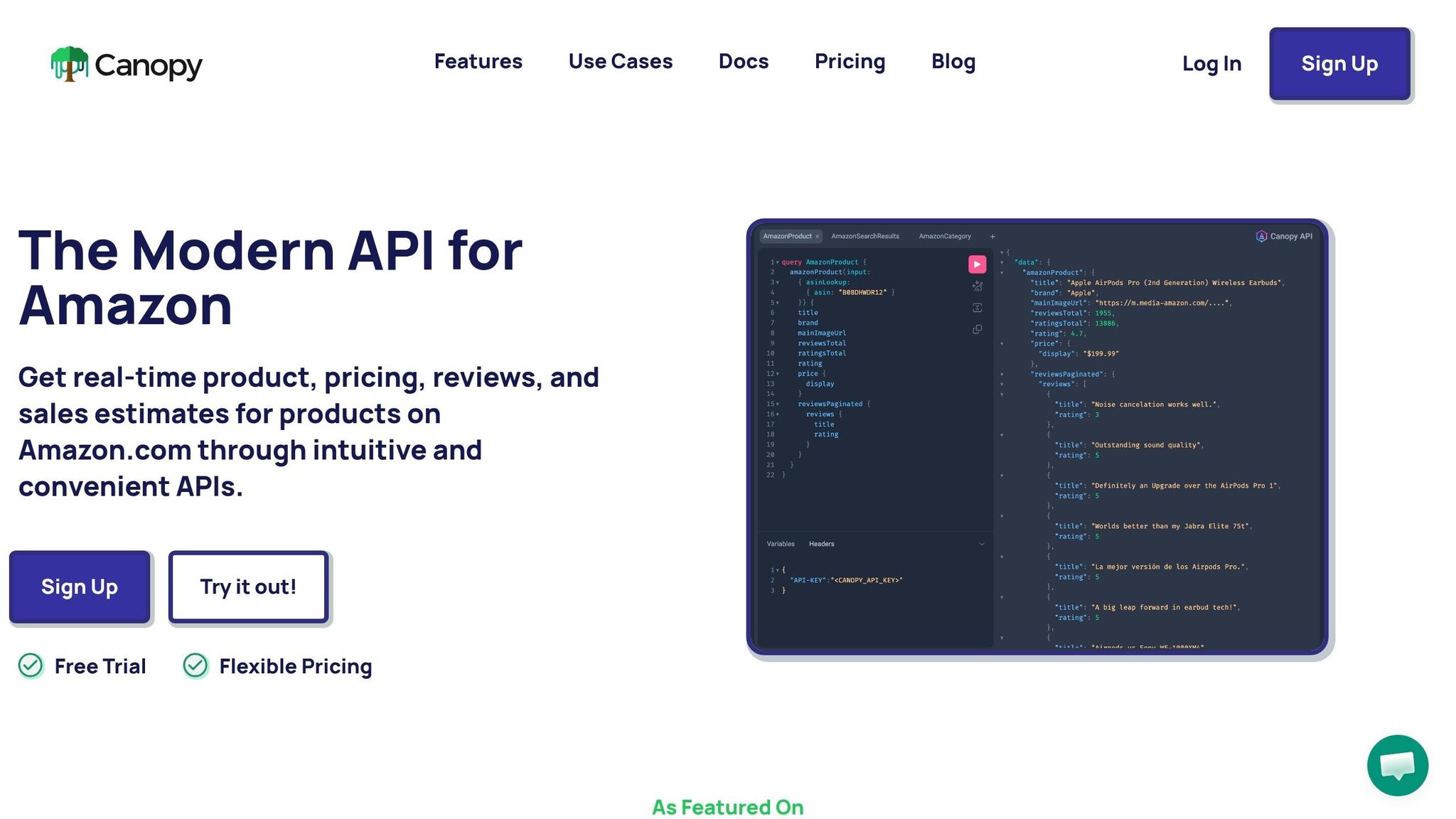
The playground is pre-configured to connect with Canopy API endpoints, simplifying the testing process.
- The REST tab is linked to
https://rest.canopyapi.co/api/amazon/productand adheres to the OpenAPI specification, which outlines the required parameters for retrieving Amazon product data. This data supports various Amazon Product API use cases, from price tracking to inventory management. - The GraphQL tab connects to
https://graphql.canopyapi.co/, a single endpoint capable of handling a wide range of queries - from product details and pricing to reviews and stock information.
| Feature | REST Tab | GraphQL Tab |
|---|---|---|
| Endpoint | https://rest.canopyapi.co/api/amazon/product |
https://graphql.canopyapi.co/ |
| HTTP Method | GET |
POST |
| Discovery Tool | OpenAPI Specification | Interactive "Docs" panel |
| Auth Header | API-KEY or Authorization: Bearer |
API-KEY or Authorization: Bearer |
How to Access and Set Up the Playground
Finding the Playground in the Dashboard
Getting started with the playground is straightforward. Once you log into your Canopy API account, head over to the Playground section in the dashboard. There’s no need to open additional tabs or navigate to an external site - it’s all built right in. Whether you’re working with REST or GraphQL, both interfaces are ready to use the moment you access the playground. This setup ensures a smooth and unified testing experience directly within the dashboard.
Automatic API Key Injection
One of the most convenient features of the playground is the automatic API key injection. As soon as you open the playground, your API key is preloaded into every request, saving you the hassle of manual configuration. This feature also reduces the risk of exposing your API key, as it remains securely managed within your dashboard session.
If needed, you can still view the injected key in the request headers panel. This allows you to double-check its accuracy or replace it with a different key if required.
Plan Requirements and Request Limits
When using the playground, it’s important to remember that every request counts toward your monthly API limit. Since the playground operates on the same infrastructure as production calls, these requests are treated the same. Here’s a quick overview of the available plans:
| Plan | Monthly Cost | Included Requests | Overage Rate |
|---|---|---|---|
| Hobby | Free | 100 | N/A (capped) |
| Pay As You Go | $0 | 100 | $0.01 per request |
| Premium | $99 | 20,000 | $0.008 per request |
If you’re just starting out, the Hobby plan provides 100 free requests per month. This is plenty to explore the REST and GraphQL tabs, test a few product queries, and familiarize yourself with the response structure - all without any cost. Once you’re ready to expand your usage, upgrading to Pay As You Go or Premium allows for higher request volumes at lower per-request rates. Keep an eye on your usage in the dashboard to avoid unexpected charges, especially if you’re on the Pay As You Go plan.
Testing REST and GraphQL in the Playground
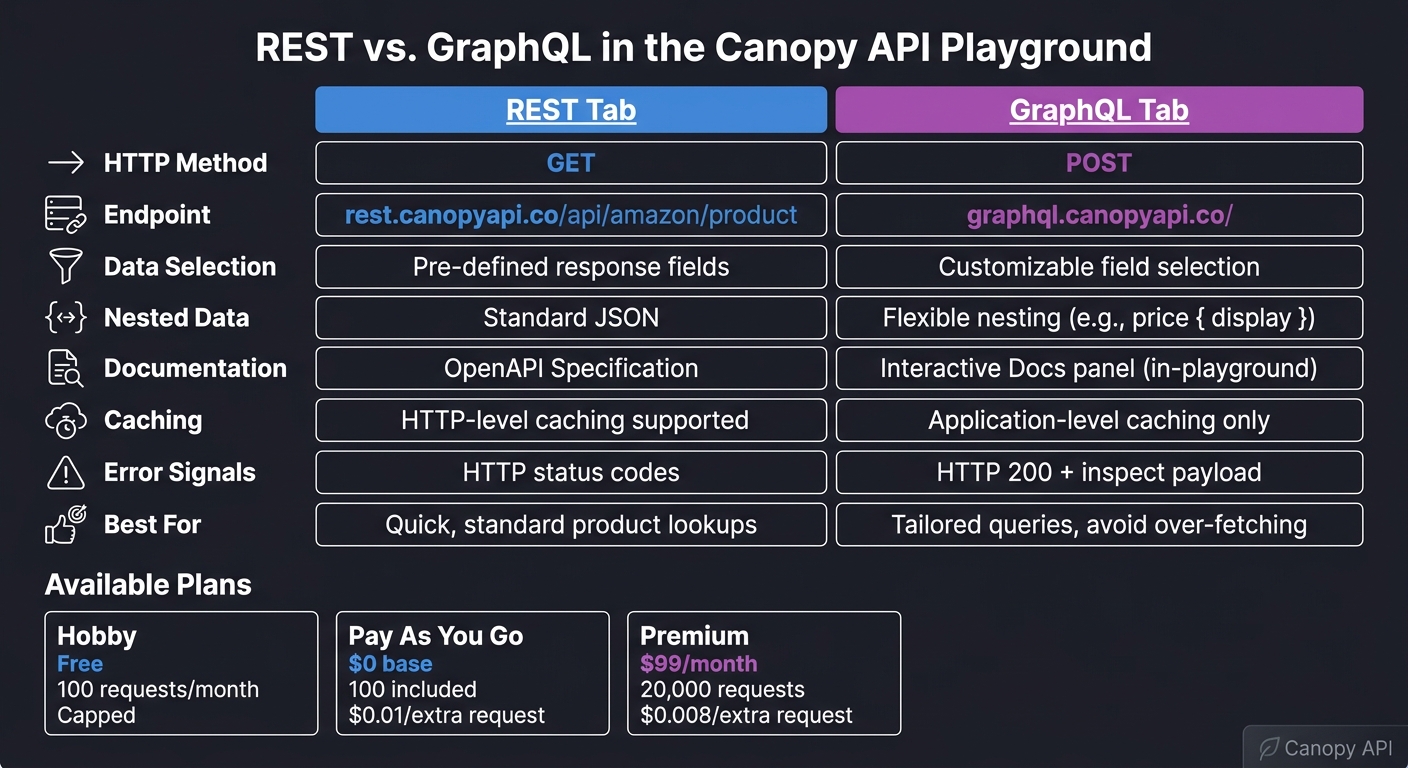
REST vs. GraphQL API Playground: Side-by-Side Feature Comparison
This section walks you through using the playground to test live requests with both the REST and GraphQL tabs.
How to Use the REST Tab
The REST tab is perfect for straightforward product lookups. Start by setting the HTTP method to GET and directing the path to https://rest.canopyapi.co/api/amazon/product. The playground automatically includes your API key in the headers.
To retrieve details for a specific product, include the asin as a query parameter - for example, asin=B0B3JBVDYP. After sending the request, you’ll receive a JSON response containing the product’s title, main image URL, ratings, and pricing. It’s a simple and efficient way to confirm your integration is working before diving into production code.
Once you've tried the REST tab, move on to the GraphQL tab for more flexibility and learn how to optimize GraphQL queries.
How to Use the GraphQL Tab
The GraphQL tab gives you control over which fields to query. Start by opening the Docs panel, where you’ll find available types and fields, such as title, mainImageUrl, rating, and the nested price object.
Here’s an example of a basic GraphQL query for Amazon product data:
query amazonProduct($asin: String!) {
  amazonProduct(input: {asin: $asin}) {
    title
    mainImageUrl
    rating
    price {
      display
    }
  }
}
To pass the ASIN, use the Variables panel and input { "asin": "B0B3JBVDYP" }. This approach keeps your query clean and allows you to switch products by simply updating the variables, without modifying the query itself. The response will match your query structure, returning only the data you request - nothing extra.
REST vs. GraphQL: Side-by-Side Comparison
Here’s a quick comparison of the two tabs to help you decide which one fits your needs:
| Feature | REST Tab | GraphQL Tab |
|---|---|---|
| HTTP Method | GET |
POST |
| Endpoint | https://rest.canopyapi.co/api/amazon/product |
https://graphql.canopyapi.co/ |
| Data Selection | Pre-defined response fields | Customizable data selection |
| Nested Data | Standard JSON | Flexible nesting (e.g., price { display }) |
| Documentation | OpenAPI spec at rest.canopyapi.co |
Interactive Docs panel inside the playground |
| Best For | Quick, standard product lookups | Tailored queries to avoid over-fetching |
If you’re after a quick product detail check or a pricing snapshot, the REST tab is your go-to. But if you need precise combinations of fields - like just the product title and rating - GraphQL is the better option, letting you trim down the response to exactly what you need.
Release Notes and What Comes Next
What's New in This Release
This update introduces three key features to the dashboard: integrated playground access, unified REST/GraphQL tabs for side-by-side comparisons, and live response inspection. The playground now provides instant feedback on query responses, making it easier to verify accuracy. Authentication is handled automatically using a preloaded API key. However, there are a few current limitations to keep in mind, particularly for users with more demanding workflows.
Known Limitations
If you're planning to use the playground for heavier workflows, here are a few constraints to consider:
- Caching with GraphQL: Unlike REST, GraphQL doesn’t support standard HTTP-level caching. Since GraphQL operates through a single POST endpoint, typical browser and CDN caching mechanisms won't work. Caching needs to be managed at the application level if performance is a concern.
- Error Handling: GraphQL handles errors differently from REST. Even when issues occur, GraphQL often returns an HTTP 200 status. This means you’ll need to inspect the response payload for error details instead of relying solely on the status code.
-
File Uploads: GraphQL has limitations when it comes to file uploads. These require either a dedicated REST endpoint or the use of a library like
graphql-upload. For local development, the playground can be served via a Next.js API route (e.g.,http://localhost:3000/api/graphql). Make sure to disable the body parser in your configuration (bodyParser: false) to support file uploads.
These limitations are actively shaping the focus of future updates.
Planned Improvements
Looking ahead, the goal is to make the playground experience even smoother and more intuitive. Updates in development include expanded Quick Start resources with more examples tailored to frameworks like Next.js and libraries such as Apollo Server and GraphQL Yoga. These additions aim to help users move quickly from their first playground request to a fully functional integration in their projects.
Another priority is ensuring semantic consistency between REST and GraphQL. This involves aligning how draft entries are handled across both interfaces. As molund, Contributor, pointed out:
"The REST API already defines the correct default semantics - draft entries are excluded unless explicitly requested. GraphQL should follow the same behavior."
These planned updates reflect a commitment to refining both the user experience and technical consistency across the platform.
Conclusion
The Canopy API dashboard now includes a built-in playground that makes working with Amazon product data a breeze for developers. With the REST + GraphQL Playground, there's no need for additional tools, manual authentication, or local setup - everything you need is right there in the dashboard, ready to go in just minutes.
This update brings together features like automatic API key injection, live response inspection, and a single interface for switching between REST and GraphQL. The automatic API key injection simplifies every request, saving time and effort. The REST tab is perfect for handling straightforward resource calls, while the GraphQL tab is ideal for retrieving specific fields from more complex data structures.
Stefan, Founder of Automateed, highlighted the platform's value, saying:
"Canopy API stands out as a valuable tool for anyone needing reliable Amazon data without the headaches of personal data management."
This recognition reflects the platform's growing dependability as it continues to evolve. Future updates, such as expanded Quick Start guides for frameworks like Next.js and Apollo Server, and improved semantic alignment between REST and GraphQL, show that this is just the beginning of ongoing development.
Whether you're just starting out or managing large-scale operations, the playground is designed to meet your needs. From the free Hobby Plan to the Premium Plan, it supports a wide range of use cases, making testing faster and integration smoother.
FAQs
Where do I find the REST + GraphQL Playground in the dashboard?
You can access the REST + GraphQL Playground directly from the dashboard. It’s a handy tool for testing and exploring API requests.
- For GraphQL requests, use the interactive GraphQL playground. You'll find a Docs panel in the top-left corner that provides all the details you need.
- For REST API requests, tools like Postman or similar alternatives work perfectly. Just use the provided API endpoint to get started.
The best part? The playground automatically includes your API key, saving you time and effort.
Can I test with a different API key in the Playground?
To update your API key in the Playground, replace the Authorization header with your new API key. For step-by-step instructions and examples, check the API documentation.
How do I check GraphQL errors if the status code is 200?
When you see an HTTP status code of 200, it doesn't always mean everything went smoothly in a GraphQL query. Errors can still pop up. To catch these, always check the errors field in the response payload. Even if the status code signals success, this field will reveal any underlying issues.